
My Tri-Screen 3 shows Xebec Logo Then “No Signal” or Black ScreenUpdated 2 months ago
If your Tri-Screen 3 screen shows the “Xebec” logo and then goes to “No Signal,” or just a Black Screen with no logo, this is usually caused by a simple connection issue.
Please work through the steps below one at a time, moving to the next step only if the issue continues
Step 1: Make sure the USB-C cable is fully plugged in
Even a slightly loose cable can stop the video signal. Check both ends of the Tri-Screen 3 USB-C to USB-C cable:
- Push one end of the cable firmly into the Tri-Screen 3.
- Push the other end firmly into your laptop
Try unplugging the cable, waiting 5 seconds, and re-connecting the cable once.
Step 2: Try Another USB-C port on your Laptop
Some laptops only send video through specific USB-C ports on laptops.
For PC users to use the Tri-Screen 3 without the Adapter, your laptop must have a USB-C port that supports video output.
Your USB-C port must be equipped with one of the following type of ports, which can sometimes be noted right on your laptop for easy reference, like the images below:
- DisplayPort (DP)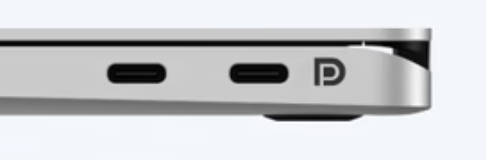
- Thunderbolt 3 or Thunderbolt 4 (lightning bolt symbol)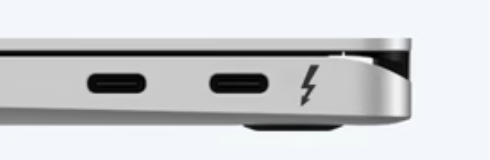
If you do not see any of these symbols next to your USB-C port, don’t worry. You can still check your laptop’s specifications by following the steps listed at the bottom of the page here.
Step 3: If you are using the Adapter (if you are not using the Adapter, skip this section)
First, ensure all the steps listed in this support article linked here are followed to ensure your laptops settings are configured for the Adapter.
Second, please also make sure:
- Inspect the Adapter and ensure that none of the prongs are bent or misshappen.
- Correctly Shaped Prongs

- Damaged or Bent Prongs
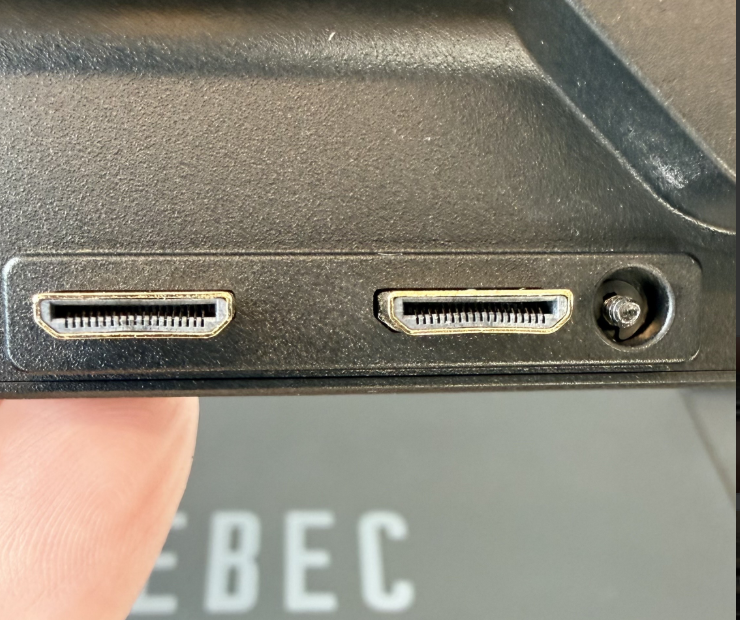
- The Adapter prongs are fully plugged in inside of the Tri-Screen 3 ports.
- Ensure your laptop is restarted after downloading the DisplayLink Driver and ensure that it is up and actively running.
Not sure whether you need the Adapter? If you’re a Mac user, you will always need the Adapter. If you’re a PC user, check out our guide here or reach out to us here.
Step 4: If you are using the Adapter on MAC ONLY, check DisplayLink to ensure screens are switched to "ON" and adjust brightness and contrast settings (if you are not using the Adapter, skip this section)
In DisplayLink, if the screens are switched to be OFF they will not show a display. Additionally, if the brightness in DisplayLink is set to 0, the screen may also appear completely black. Open DisplayLink Manager, go to Displays, and check the Brightness setting as shown in the image below.
Make sure the screens are switched ON and brightness is turned up. The Contrast setting should generally be set near the middle, but you can adjust it slightly to find what looks best for you.
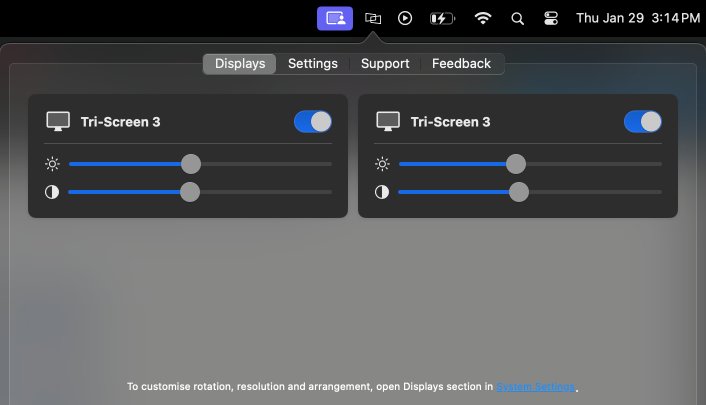
Once these settings are adjusted, the screen should display normally.
Step 5: Use Pass-Through Charging
Plug your laptop’s USB-C charger into the power port on the Tri-Screen 3. This allows the Tri-Screen 3 to receive extra, steady power from the wall outlet instead of relying only on the laptop.
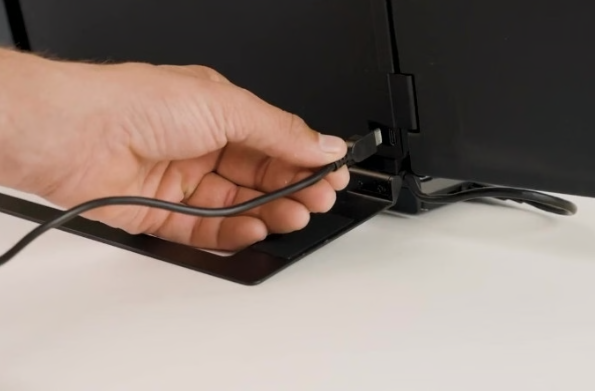
Once the screens are connected and the screens show a display, move on to the next step.
Lower the screen brightness
Slightly lower the brightness on each screen of the Tri-Screen 3. Lowering the brightness makes it easier for your laptop to power the screens and can help prevent the issue from returning.
Step 6: Contact us
If you are continuing to run into issues, please reach out to us here and include the year, make, and model of your laptop along with the steps you have already taken to fix the connection issue. We’ll provide you with tailored, 1:1 support to get you up and running!