I have the Mac Adapter but am still not receiving a signal?Updated 21 days ago
No worries! After connecting your Mac Adapter, there are a few extra steps to make sure everything works.
Step 1: Download the DisplayLink Driver
The DisplayLink Driver is free and needed for your Mac Adapter to work.
After downloading, restart your laptop so the driver can start working.
Step 2: Setting Up on PC
- After restarting, your PC should automatically launch the driver.
- If you don’t see your screens, check the display settings. Make sure all boxes are set to Extend the desktop, not duplicate or disconnect.
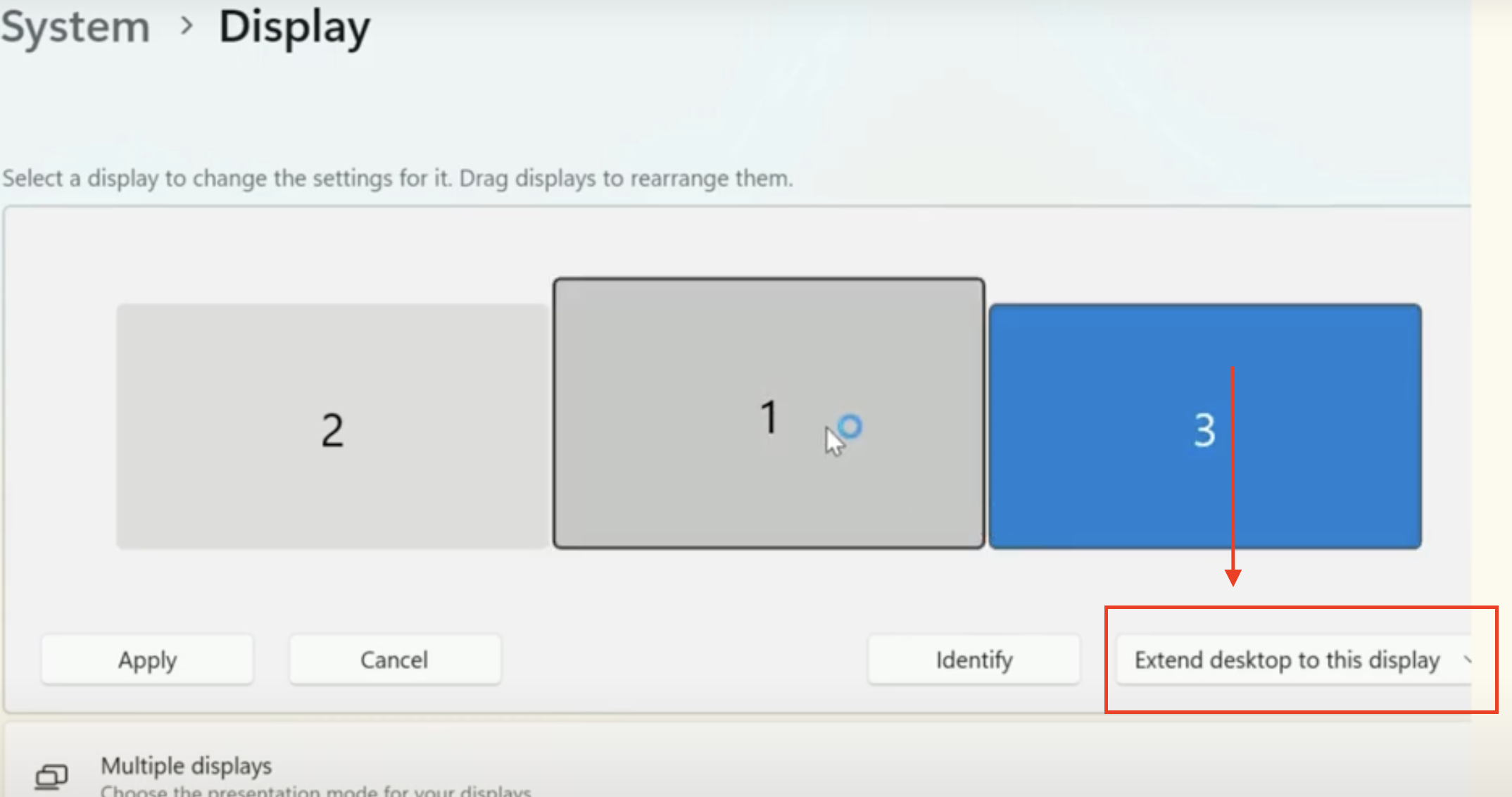
- You should now be ready to use your extra screens.
- If your screens or mouse don’t seem aligned, you can check your screen arrangement settings to fix it. Check out this article for help.
Step 3: Setting Up on Mac
1. Make sure Screen Recording permission is enabled for DisplayLink.
- Here is a video tutorial and step-by-step guide to help you.
2. Once the driver is installed and permissions are set, you should see two overlapping grey boxes in your icon bar.

- If you don’t see them, search for “DisplayLink Manager” in your applications and double-click it to turn it on.
3. Click the grey boxes. Make sure two screens are listed and toggle “on” for both displays so they show correctly.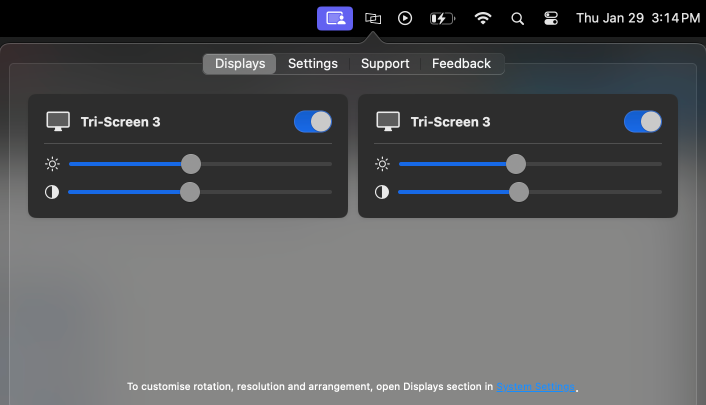
4. Make sure the box for “Launch Automatically” is checked. This ensures the driver turns on every time you connect your adapter.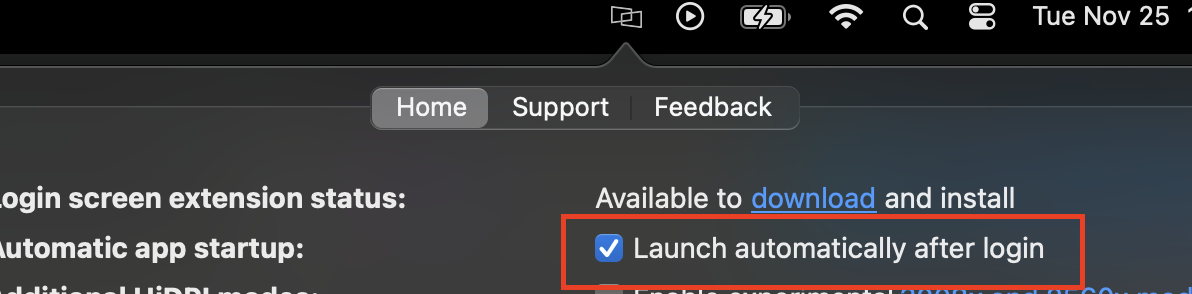
Step 4: Adjust Screen and Cursor Alignment
To make sure your screens and mouse cursor are aligned properly, check our support article on screen alignment and cursor configuration.
If you have any questions or continue to run into any issues feel free to reach out to us here.