How do I adjust size of text and apps on the Tri-Screen 3?Updated 22 days ago
You can adjust the size of text and apps on both Mac and Windows, including monitors connected via DisplayLink. Follow the instructions below for your operating system.
Mac
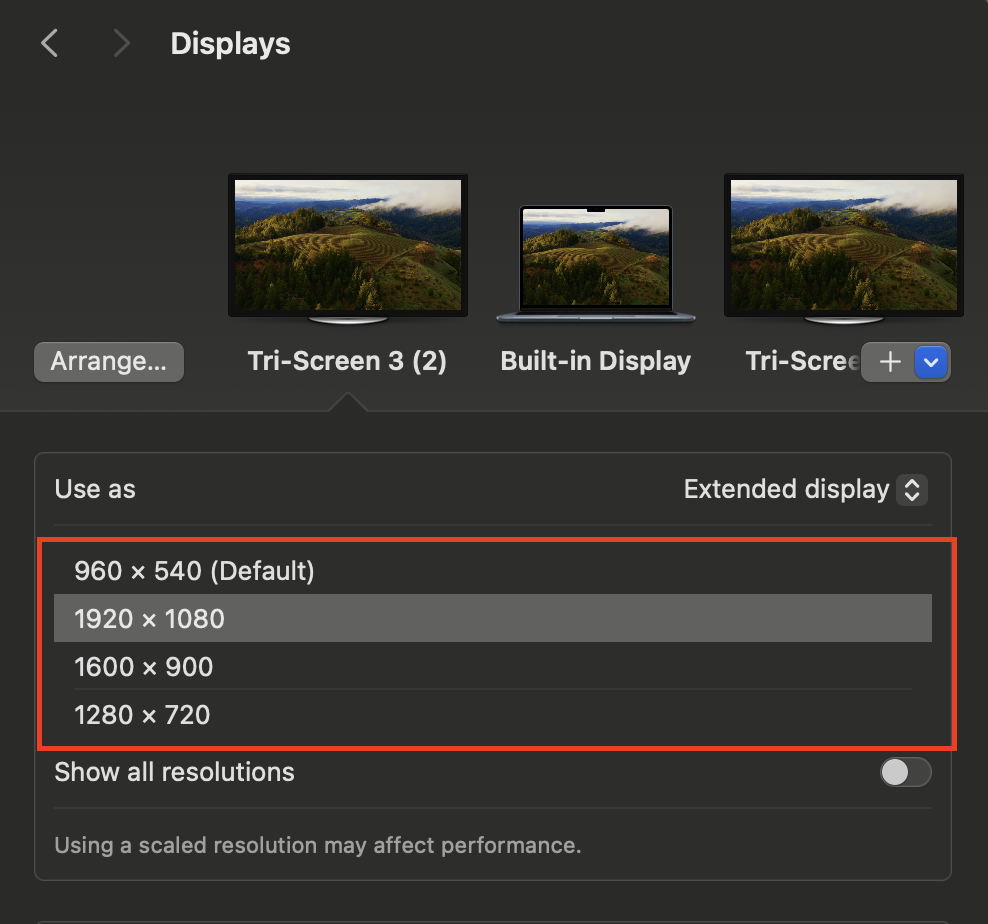
1. Click the Apple icon in the top left corner of your laptop and go to System Settings.
2. From there, go to Display Settings.
3. Select the screen you want to adjust and choose your preferred resolution. We recommend using 1920 × 1080, but you can experiment to see what works best for you.
4. Take note that each screen has it's own resolution, so repeat step 3 as needed.
Windows
On Windows, you can adjust the size of text, apps, and other items through your display settings:
1. Right-click on your desktop and select Display settings.
2. Under Scale and layout, adjust the scaling percentage to make text and apps larger or smaller.
3. Under Display resolution, select a resolution that suits your preference.
Alternative Option:
You can also use the Snap Display App to adjust zoom levels. To do this:
1. Download the Snap Display App here
2. Open the app by clicking the Vinny the Vanagon icon.
3. Select the display you would like to adjust.
4. Select the zoom level of your preference!